> ## Documentation Index
> Fetch the complete documentation index at: https://docs.kasoftware.com/llms.txt
> Use this file to discover all available pages before exploring further.
# 通知
> 如何配置系統健康狀況、憑證過期、處理錯誤和關鍵事件的監控通知。
export const siteNameShort = "知行之橋";
使用**通知**索引標籤配置智慧監控,及時瞭解系統健康狀況、憑證過期、處理錯誤和關鍵事件的警示,防止它們影響您的運營。
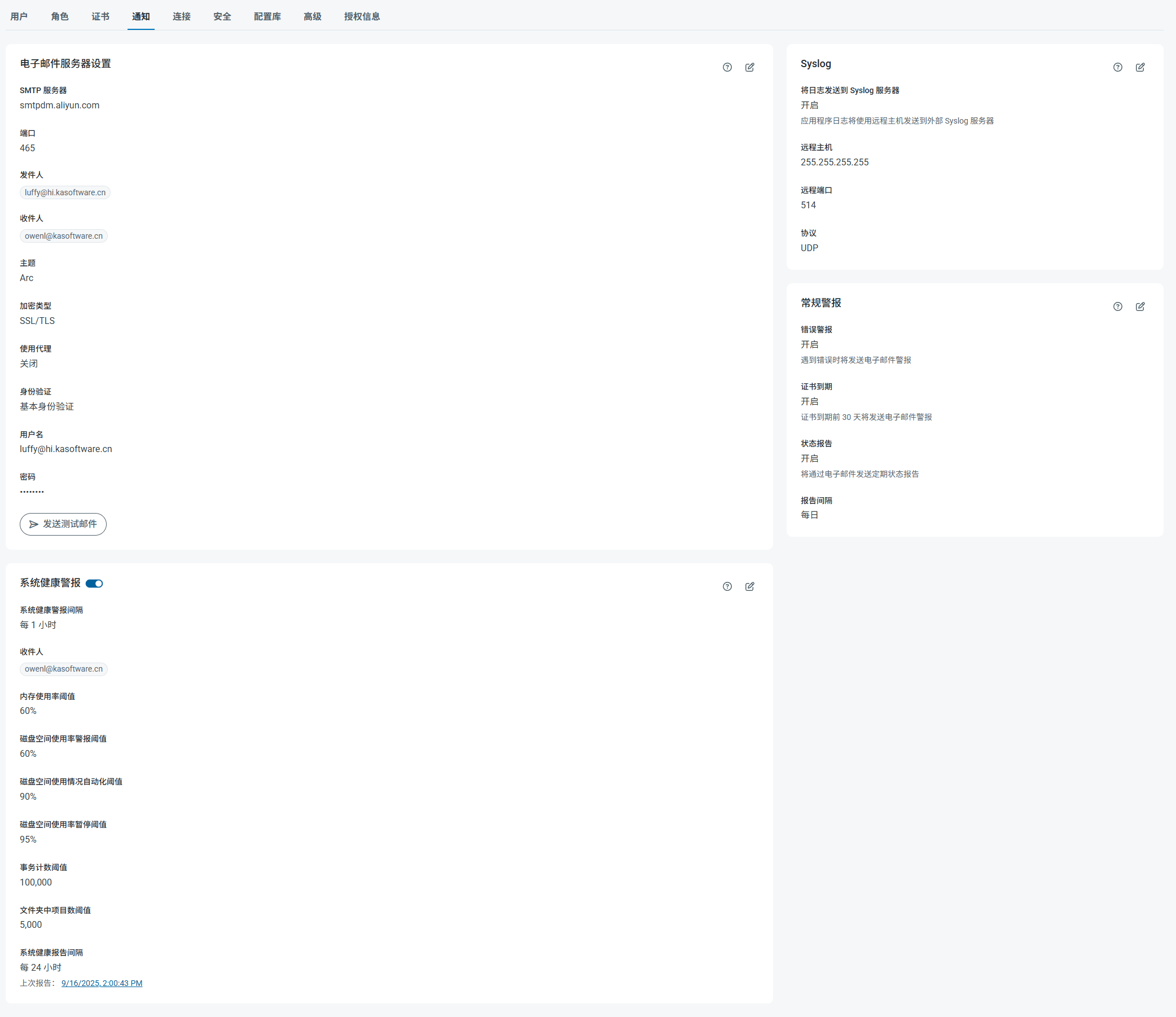 * 點選頁面**電子郵件設定**部分中的**配置**以啟用電子郵件通知或狀態報告。填寫**電子郵件伺服器設定**欄位以配置電子郵件收件人、主題行和 SMTP 身分驗證選項。
* **系統健康警示**允許指定與系統相關的警示選項,包括警示間隔、報告間隔和多個系統閾值設定。
* **Syslog 設定**包含將應用程式日誌傳送到外部 Syslog 伺服器的選項。如果啟用此選項,請使用這些欄位指定遠端主機連線設定。
* **常規警示**允許切換警示選項,包括傳送錯誤電子郵件和狀態報告。如果使用 .NET 版本,還可以選擇將錯誤訊息記錄到 Windows 應用程式事件日誌中。
要更改任何警示設定,請點選平板與鉛筆
* 點選頁面**電子郵件設定**部分中的**配置**以啟用電子郵件通知或狀態報告。填寫**電子郵件伺服器設定**欄位以配置電子郵件收件人、主題行和 SMTP 身分驗證選項。
* **系統健康警示**允許指定與系統相關的警示選項,包括警示間隔、報告間隔和多個系統閾值設定。
* **Syslog 設定**包含將應用程式日誌傳送到外部 Syslog 伺服器的選項。如果啟用此選項,請使用這些欄位指定遠端主機連線設定。
* **常規警示**允許切換警示選項,包括傳送錯誤電子郵件和狀態報告。如果使用 .NET 版本,還可以選擇將錯誤訊息記錄到 Windows 應用程式事件日誌中。
要更改任何警示設定,請點選平板與鉛筆  圖示。
### 自定義通知
可以根據特定條件在訊息處理過程中傳送自定義通知。為此,請將 [Notify 端口](../../../connectors/notify)新增到[工作流程](../../../flows),並將其配置為在該端口收到訊息時通知您。
圖示。
### 自定義通知
可以根據特定條件在訊息處理過程中傳送自定義通知。為此,請將 [Notify 端口](../../../connectors/notify)新增到[工作流程](../../../flows),並將其配置為在該端口收到訊息時通知您。