> ## Documentation Index
> Fetch the complete documentation index at: https://docs.kasoftware.com/llms.txt
> Use this file to discover all available pages before exploring further.
# 通知
> 如何配置系统健康状况、证书过期、处理错误和关键事件的监控通知。
export const siteNameShort = "知行之桥";
使用**通知**选项卡配置智能监控,及时了解系统健康状况、证书过期、处理错误和关键事件的警报,防止它们影响您的运营。
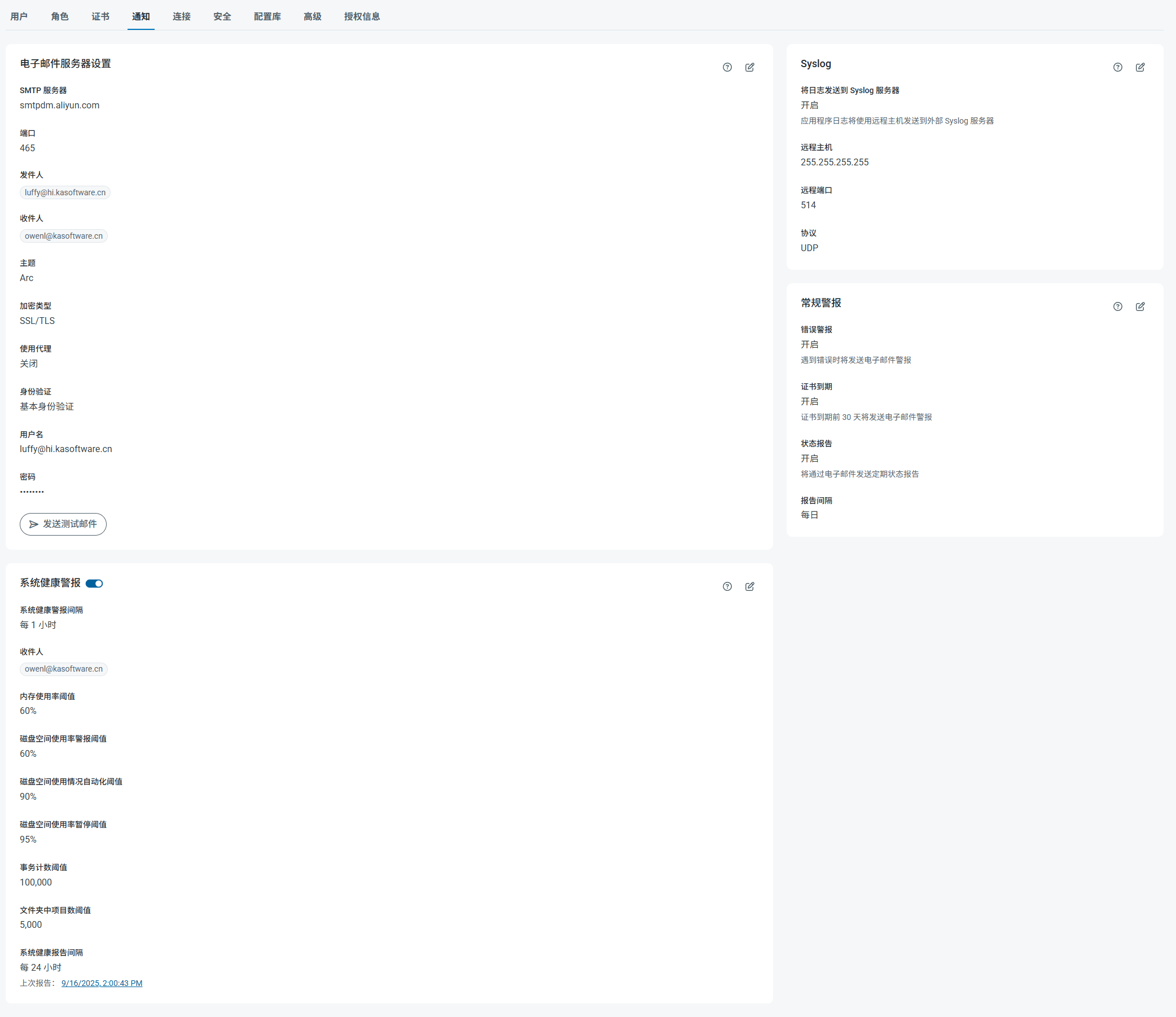 * 点击页面**电子邮件设置**部分中的**配置**以启用电子邮件通知或状态报告。填写**电子邮件服务器设置**字段以配置电子邮件收件人、主题行和 SMTP 身份验证选项。
* **系统健康警报**允许指定与系统相关的警报选项,包括警报间隔、报告间隔和多个系统阈值设置。
* **Syslog 设置**包含将应用程序日志发送到外部 Syslog 服务器的选项。如果启用此选项,请使用这些字段指定远程主机连接设置。
* **常规警报**允许切换警报选项,包括发送错误电子邮件和状态报告。如果使用 .NET 版本,还可以选择将错误消息记录到 Windows 应用程序事件日志中。
要更改任何警报设置,请点击平板与铅笔
* 点击页面**电子邮件设置**部分中的**配置**以启用电子邮件通知或状态报告。填写**电子邮件服务器设置**字段以配置电子邮件收件人、主题行和 SMTP 身份验证选项。
* **系统健康警报**允许指定与系统相关的警报选项,包括警报间隔、报告间隔和多个系统阈值设置。
* **Syslog 设置**包含将应用程序日志发送到外部 Syslog 服务器的选项。如果启用此选项,请使用这些字段指定远程主机连接设置。
* **常规警报**允许切换警报选项,包括发送错误电子邮件和状态报告。如果使用 .NET 版本,还可以选择将错误消息记录到 Windows 应用程序事件日志中。
要更改任何警报设置,请点击平板与铅笔  图标。
### 自定义通知
可以根据特定条件在消息处理过程中发送自定义通知。为此,请将 [Notify 端口](../../../connectors/notify)添加到[工作流](../../../flows),并将其配置为在该端口收到消息时通知您。
图标。
### 自定义通知
可以根据特定条件在消息处理过程中发送自定义通知。为此,请将 [Notify 端口](../../../connectors/notify)添加到[工作流](../../../flows),并将其配置为在该端口收到消息时通知您。